If you find this add-on useful, please star it on GitHub — stars show appreciation and help maintainers know their work matters.
DDEV Drupal Canvas Development Environment
This creates and configures a DDEV project for local Drupal Canvas module development. Specifically, it creates a Drupal site, clones and installs the module, sets up the front-end dependencies, and provides specialized development and testing tools.
Notice: This add-on is experimental. See Support & community below.
Requirements
Obviously, this requires a working DDEV installation. It has been successfully tested with Orbstack, Lima, Colima, Rancher Desktop, and Docker Desktop. Others should work fine, as well.
Installation
# Create a new directory for your new DDEV project.
# This can be any place you like. For example:
mkdir ~/Sites/xb-dev
cd ~/Sites/xb-dev

# Configure the new DDEV project.
ddev config --project-type=drupal11

# Create the Drupal project.
ddev composer create-project drupal/recommended-project:11.x@dev --no-install

# Install the add-on.
ddev add-on get drupal-canvas/ddev-drupal-xb-dev

# Perform one-time setup operations, including composer installing Drupal Canvas itself.
ddev xb-setup

# Optionally add some convenience extras for development.
ddev xb-dev-extras

# Optionally configure the environment for Workspaces development. Note: This can be
# a little volatile due to upstream Workspaces changes. Be aware that it can fail
# and leave your site in a non-working state requiring you to set it up again from scratch.
ddev xb-workspaces-dev
Usage
The resulting DDEV project is just like any other one. Interact with it using the the built-in commands, e.g., ddev launch to browse the site.
The installation process clones the Drupal Canvas module into the project installer path for contrib modules (typically web/modules/contrib/canvas for docroot: web, or modules/contrib/canvas for docroot: ""). Develop and contribute from there like you would any other Git repo for a normal Drupal project.
Any time you update the Drupal Canvas module or modify its front-end code, be sure to rebuild the UI app assets:
ddev xb-ui-build
When developing the React app, make sure to use the HTTPS URL of your DDEV project, then run:
ddev xb-ui-dev
To completely reinstall Drupal and the Drupal Canvas module, run:
ddev xb-site-install
For the full list of available Drupal Canvas commands, run this:
ddev | grep xb-
Updating
Update the Drupal Canvas module clone just like you would any other Git repo. No tools are currently provided for updating Core.
Automatic tests
PHPUnit
For PHPUnit based tests (Unit, Kernel, Functional, and FunctionalJavascript), the xb-phpunit command is provided.
The test file must be passed relative to the canvas module root.
ddev xb-phpunit tests/src/Functional/CanvasConfigEntityHttpApiTest.php
Whatever extra argument phpunit accepts can be used:
ddev xb-phpunit tests/src/Functional/CanvasConfigEntityHttpApiTest.php --filter testJavascriptComponent
Cypress
Drupal Canvas uses Cypress for front-end testing. It is currently only supported on macOS. Linux and Windows with WSL2 might work with the instructions below.
Setup
macOS
Carefully follow the below XQuartz configuration steps after installing it. Failure to do so will result in frustrating, difficult to debug problems.
Install XQuartz using Homebrew. See also https://www.xquartz.org/.
brew install xquartz
Configure XQuartz to allow connections from the host:
defaults write org.xquartz.X11 nolisten_tcp -bool false
If you haven’t opened XQuartz yet, it will pick up the setting on its first launch — xb-cypress / xb-playwright will start it for you.
Security note: allowing network clients causes XQuartz to listen on TCP (port 6000) while running.
xb-cypressandxb-playwrightalso runxhost +before launching tests, which disables X access control for the session — any local process could then connect to the X server and observe its state. Only apply this setting if that tradeoff is acceptable on your machine.
Prefer to configure this from the XQuartz UI?
- Open XQuartz.
- Open Preferences (“XQuartz” > “Settings…” from the menu or
⌘,). - Go to the “Security” tab.
- Check the “Allow connections from network clients” checkbox.
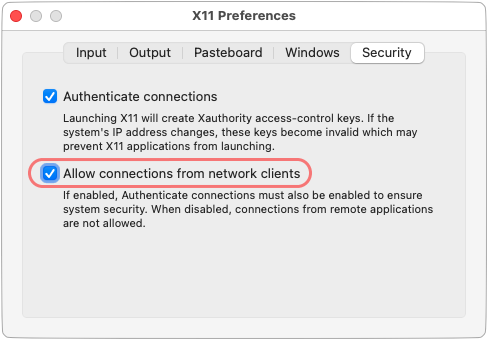
Then restart XQuartz (quit and reopen, or log out and back in) for the change to take effect.
Windows
Note: This is experimental and officially unsupported. Members of the community who use Windows may be able to provide unofficial support. See Support \& community. Be sure to thank them. They’re giving up their personal time to help you.
Install VcXsrv Windows X Server in the default “C:/Program Files” location. You might need to restart your system afterwards.
Linux
Note: This is experimental and officially unsupported. Members of the community who use Linux may be able to provide unofficial support. See Support \& community. Be sure to thank them. They’re giving up their personal time to help you.
This configuration depends on what type of desktop environment you are using, and the X server session it uses.
To know if you are using x11 or wayland, run:
echo $XDG_SESSION_TYPE
First, create a docker-compose file at .ddev:
touch .ddev/docker-compose.xb-cypress.yml
Edit the docker-compose file adding the configuration depending on your XDG session type:
If you use X11
services:
  web:
    environment:
      - DISPLAY=:0
    volumes:
      - /tmp/.X11-unix:/tmp/.X11-unix
If you use Wayland
services:
  web:
    environment:
      - WAYLAND_DISPLAY=$WAYLAND_DISPLAY
      - XDG_RUNTIME_DIR=$XDG_RUNTIME_DIR
      - DISPLAY=$DISPLAY
      - XAUTHORITY=/tmp/.Xauthority
    volumes:
      - $XDG_RUNTIME_DIR/$WAYLAND_DISPLAY:/tmp/wayland-0
      - /tmp/.X11-unix:/tmp/.X11-unix
      - /var/run/dbus/system_bus_socket:/var/run/dbus/system_bus_socket
      - ${XAUTHORITY:-$HOME/.Xauthority}:/tmp/.Xauthority
After adding the configuration, restart DDEV:
ddev restart
Running Cypress tests
Run Cypress tests interactively:
ddev xb-cypress open
Run them headlessly:
ddev xb-cypress run
Run component/unit tests:
ddev xb-cypress component
Support & community
- Drupal Canvas module
- #experience-builder Drupal Slack channel
-
Background on this add-on: [DDEV support for Cypress tests [#3458369] Drupal.org](https://www.drupal.org/project/canvas/issues/3458369)
FAQ & known issues
Can I use Cypress on Windows or Linux?
Windows and Linux are not officially supported, however, some people have reported it working on Windows + WSL2. See Windows setup, and Linux. By all means, see Support & community to share your experience so we can improve these docs.
What if Cypress fails to start?
If you get an error like the below when attempting to run Cypress on macOS…
- Confirm that you have carefully followed all the instructions under Cypress.
- See if your Docker provider above requires any special configuration.
If these don’t resolve the issue, see Support & community above.
Cypress failed to start.

This may be due to a missing library or dependency. https://on.cypress.io/required-dependencies

Please refer to the error below for more details.

----------

[2536:0808/191430.352014:ERROR:bus.cc(407)] Failed to connect to the bus: Failed to connect to socket /run/dbus/system_bus_socket: No such file or directory
[2536:0808/191431.055343:ERROR:ozone_platform_x11.cc(240)] Missing X server or $DISPLAY
[2536:0808/191431.055373:ERROR:env.cc(255)] The platform failed to initialize.  Exiting.

----------

Platform: linux-arm64 (Debian - 12)
Cypress Version: 13.12.0
Failed to execute command node_modules/.bin/cypress open --browser electron --project .: exit status 1
Failed to run xb-cypress-open ; error=exit status 1
What if I get an HTTPS error?
If this is your first time using DDEV, you may get an error like the following when you try to visit your site. If so, you need to configure your OS and browser to trust the root certificate authority that DDEV uses. See DDEV Installation.
This site can't be reached

The webpage at https://xb-dev.ddev.site/ might be temporarily down or it may have moved permanently to a new web address.

ERR_SSL_UNRECOGNIZED_NAME_ALERT
If you find this add-on useful, please star it on GitHub — stars show appreciation and help maintainers know their work matters.